This guide explains what Dominate syncs between your BigCommerce store and NetSuite, when it happens, where to change the settings, and what to do when a sync needs your attention. Our team sets up the sync with you. You can change most settings yourself in the Dominate dashboard. Not installed yet? Start with the Installation Guide.
1. The app page in BigCommerce
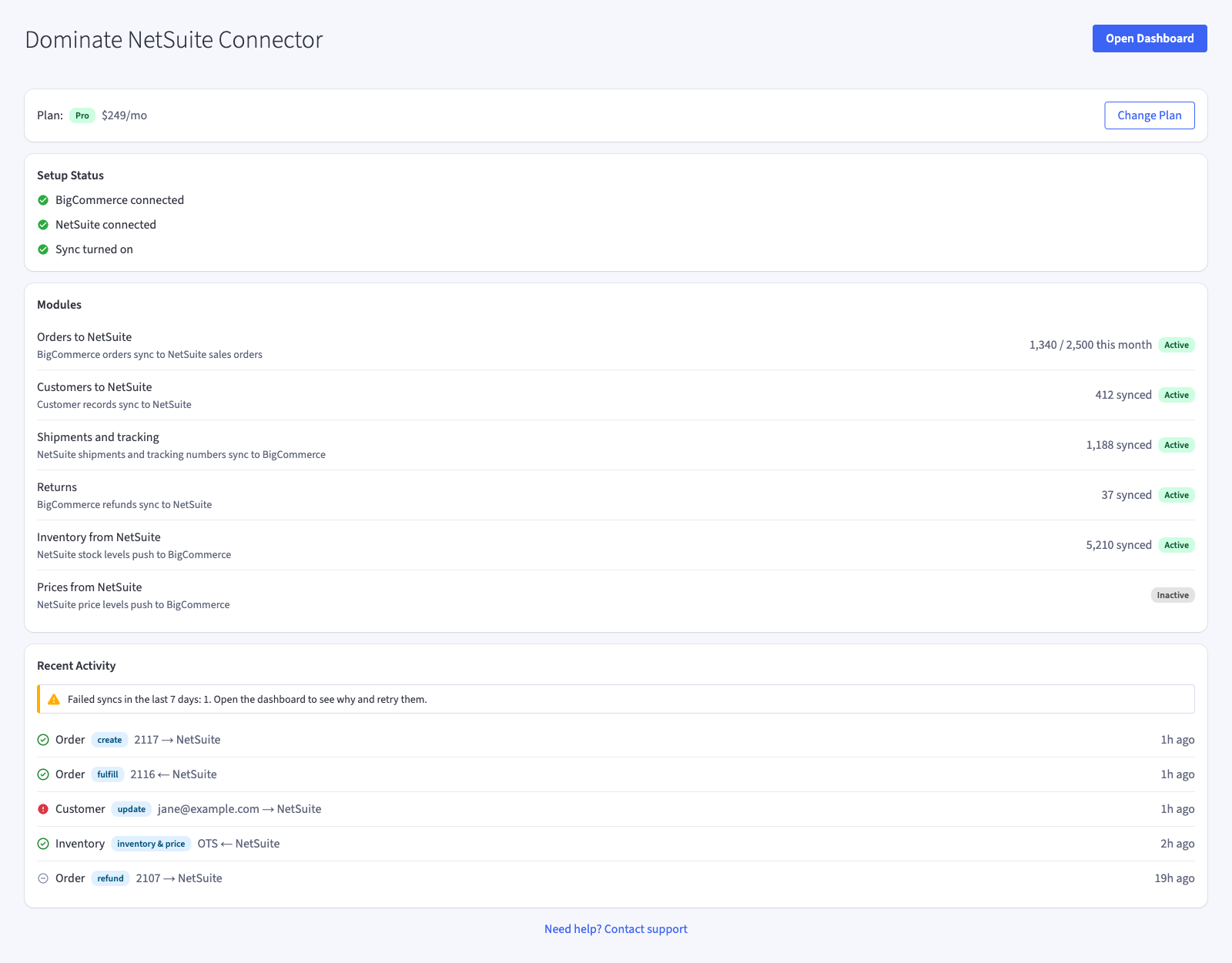
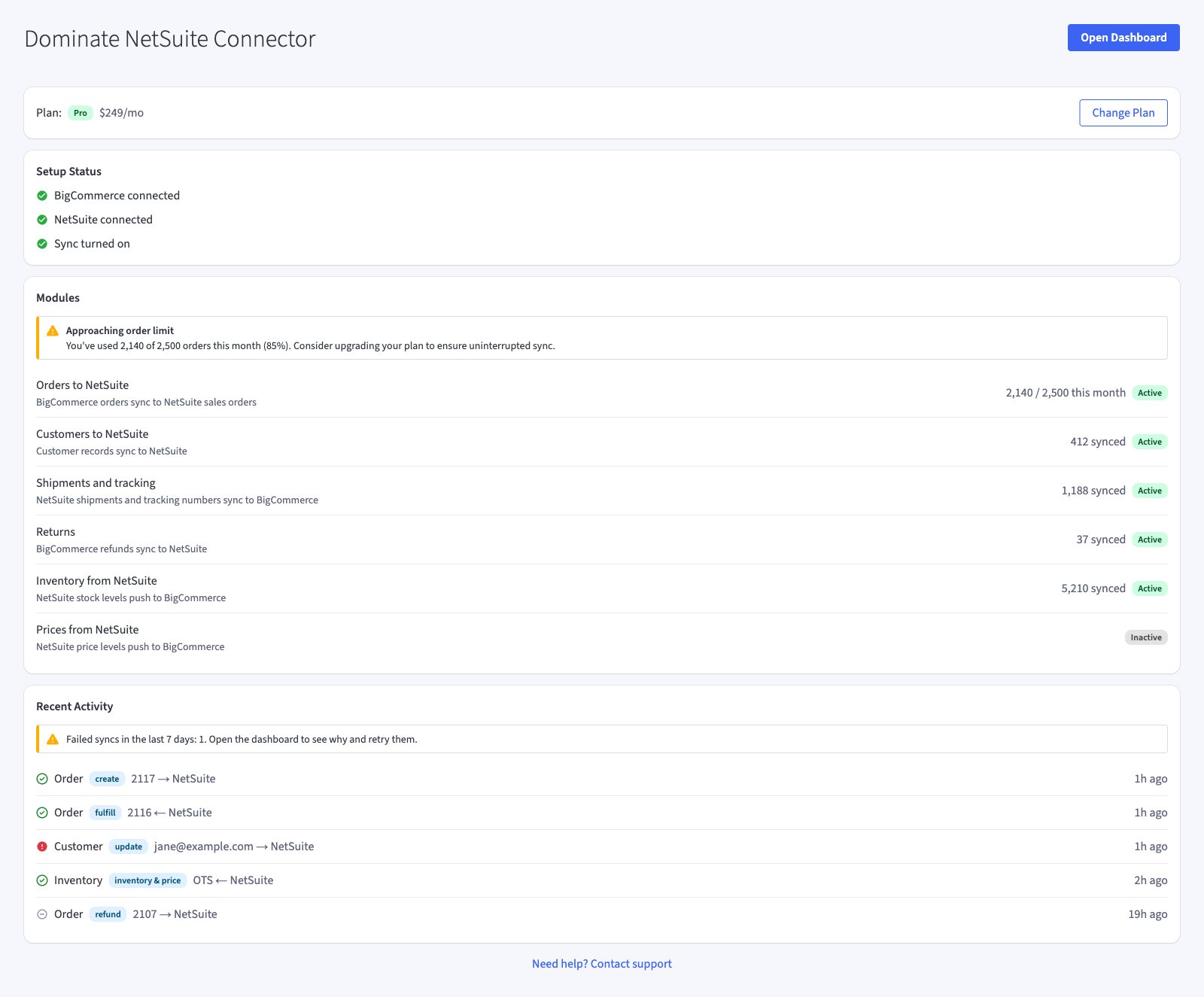
Open Apps → My Apps → Dominate NetSuite Connector in your BigCommerce control panel. The page shows:
- Plan: your plan and its monthly price, with a Change plan button (store owner only). A store our team invoices directly shows "Billed by the Dominate team" instead.
- Setup Status: whether BigCommerce is connected, NetSuite is connected, and at least one sync is turned on.
- Modules (shown once NetSuite is connected): each sync, Active or Inactive, with the number synced this month. The Orders row shows your monthly order usage against your plan's limit. A warning appears at 80% of the limit and when the limit is reached.
- Recent Activity (shown once NetSuite is connected): the last 10 syncs across orders, customers and inventory, and a note if any order or customer sync failed in the last 7 days.
- Open Dashboard (store owner only): opens your Dominate dashboard in a new tab, already signed in. The link works once and expires after 15 minutes.
- Need help? Contact support: emails support@dominate.co.
2. The Dominate dashboard
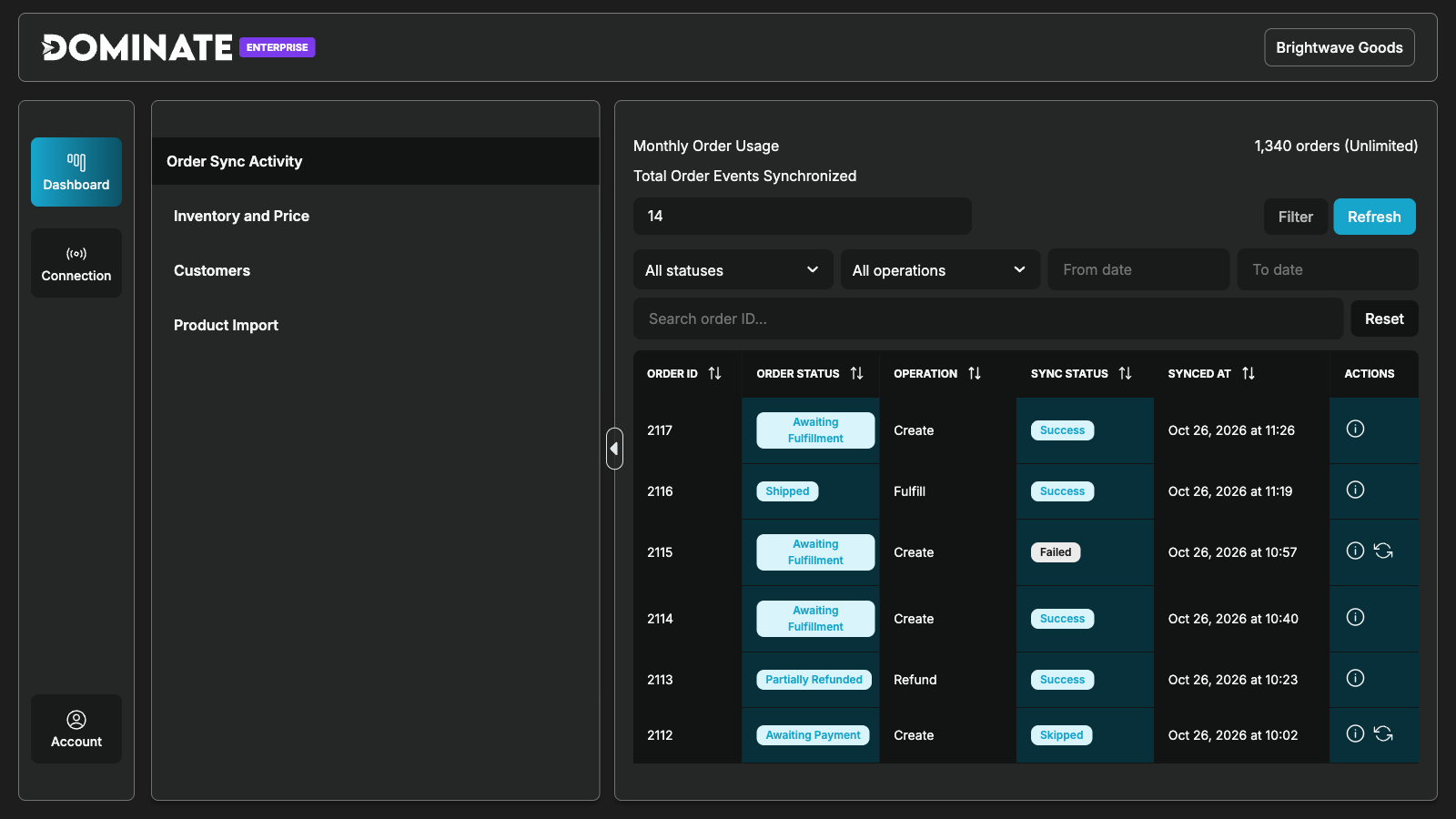
The dashboard has three areas in the left menu:
- Dashboard: the sync reports, in four tabs: Order Sync Activity, Inventory and Price, Customers and Product Import. Each row shows the record, the operation, the sync status (Success, Failed, Skipped or Pending) and the time. View sync details opens the full details and the error. Retry Sync appears on failed and skipped rows. Filter narrows the list by status, operation, date or a search term.
- Connection: the BigCommerce Connection card (the store the app is connected to, Test Connection, and the Webhooks list with Repair webhooks), and the NetSuite card with all sync settings: Connection & Core Mapping, Orders Settings, Product Settings (Inventory and Price Settings, Product Import Settings) and Customers Settings. Click Save Settings after a change.
- Account: your account details and the dashboard language. English and 18 other languages are available.
3. What syncs, and when
| What | Direction | When |
|---|---|---|
| Orders | BigCommerce → NetSuite sales order | When the order enters a status you choose |
| Customers | BigCommerce → NetSuite customer | When a customer signs up, changes their details or addresses, or is deleted |
| Shipments and tracking | NetSuite → BigCommerce, or BigCommerce → NetSuite (one direction, your choice) | NetSuite → BigCommerce: every 10 minutes. BigCommerce → NetSuite: as soon as a shipment is created |
| Returns and refunds | NetSuite → BigCommerce, or BigCommerce → NetSuite (one direction, your choice) | NetSuite → BigCommerce: every 10 minutes. BigCommerce → NetSuite: as soon as a refund is created |
| Inventory and prices | NetSuite → BigCommerce | Every hour, and whenever you click Run Sync Now |
| Product import | NetSuite → BigCommerce | When you click Import Products in the dashboard (Enterprise) |
Orders
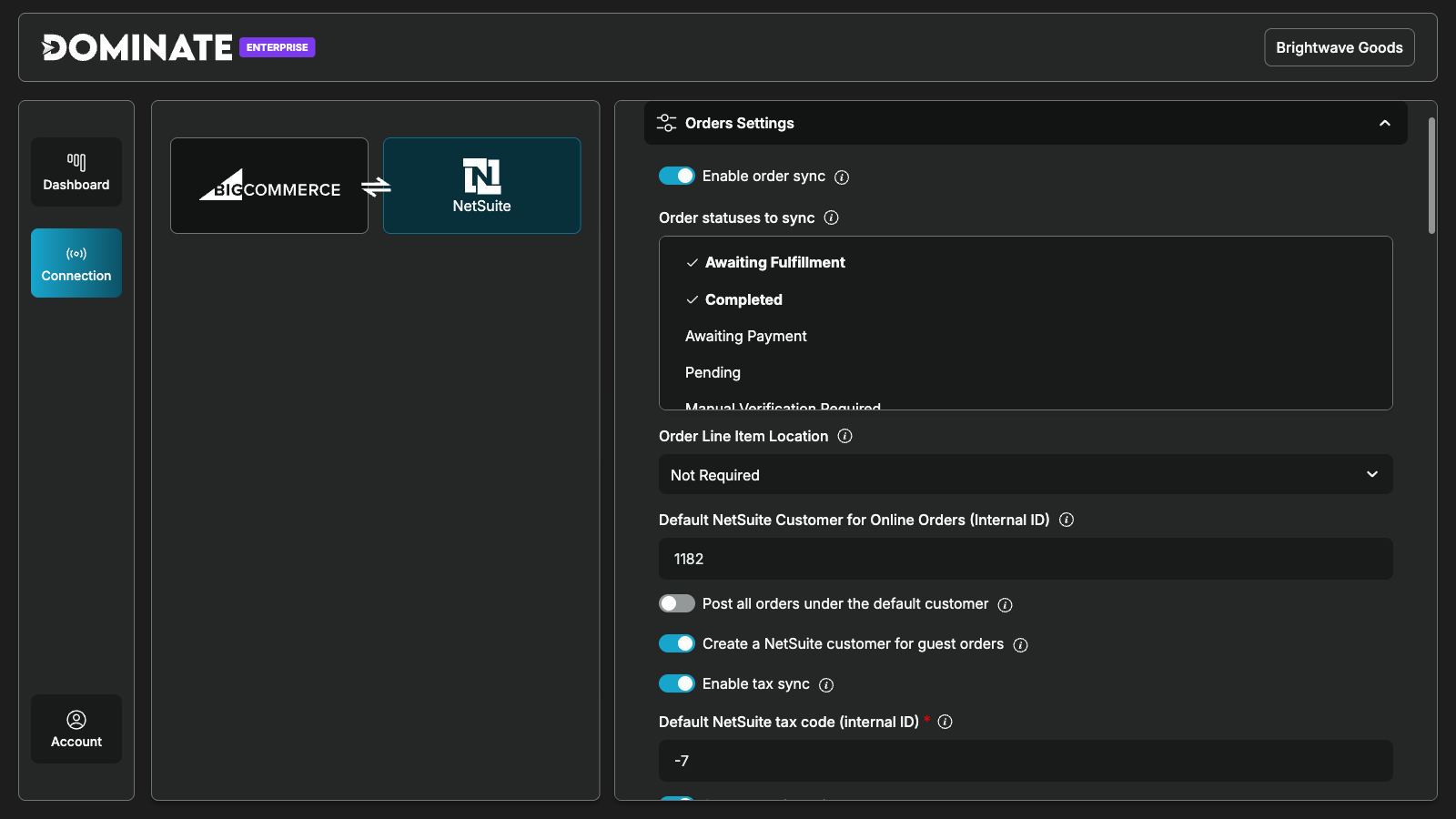
- An order is sent to NetSuite once, the first time it enters one of the statuses chosen in Orders Settings → Order statuses to sync. The default statuses are Awaiting Fulfillment and Completed. You can also choose Awaiting Payment, Pending, Manual Verification Required, Awaiting Shipment and Awaiting Pickup. With no status chosen, no order is sent on its own.
- An order that is still at the payment page (Incomplete), or that is Cancelled, Declined or Refunded, is never sent.
- Orders placed before your store was connected are not sent on their own, so your history is not booked in NetSuite twice. The report shows them as Skipped. To send one on purpose, click Retry Sync on its row.
- Every order line needs a SKU that matches an active NetSuite item. If a SKU is missing or not found, the whole order fails with the SKUs named in the error, so an incomplete order never reaches NetSuite. Add or fix the item in NetSuite, then click Retry Sync.
- Registered customers are matched to existing NetSuite customers first (by the link Dominate keeps, then by email). Guest orders go to the Default NetSuite Customer for Online Orders from your settings. With Create a NetSuite customer for guest orders switched on, a guest with an email address gets a NetSuite customer of their own.
- Each order counts toward your plan's monthly orders when it is first sent successfully. When you reach the limit, orders keep syncing, and you receive an email suggesting an upgrade.
Customers
A new or updated customer, or a changed address, updates the customer in NetSuite. The customer's first address becomes the default address in NetSuite. Deleting a customer in BigCommerce makes the NetSuite customer inactive; nothing is deleted in NetSuite.
Shipments and tracking
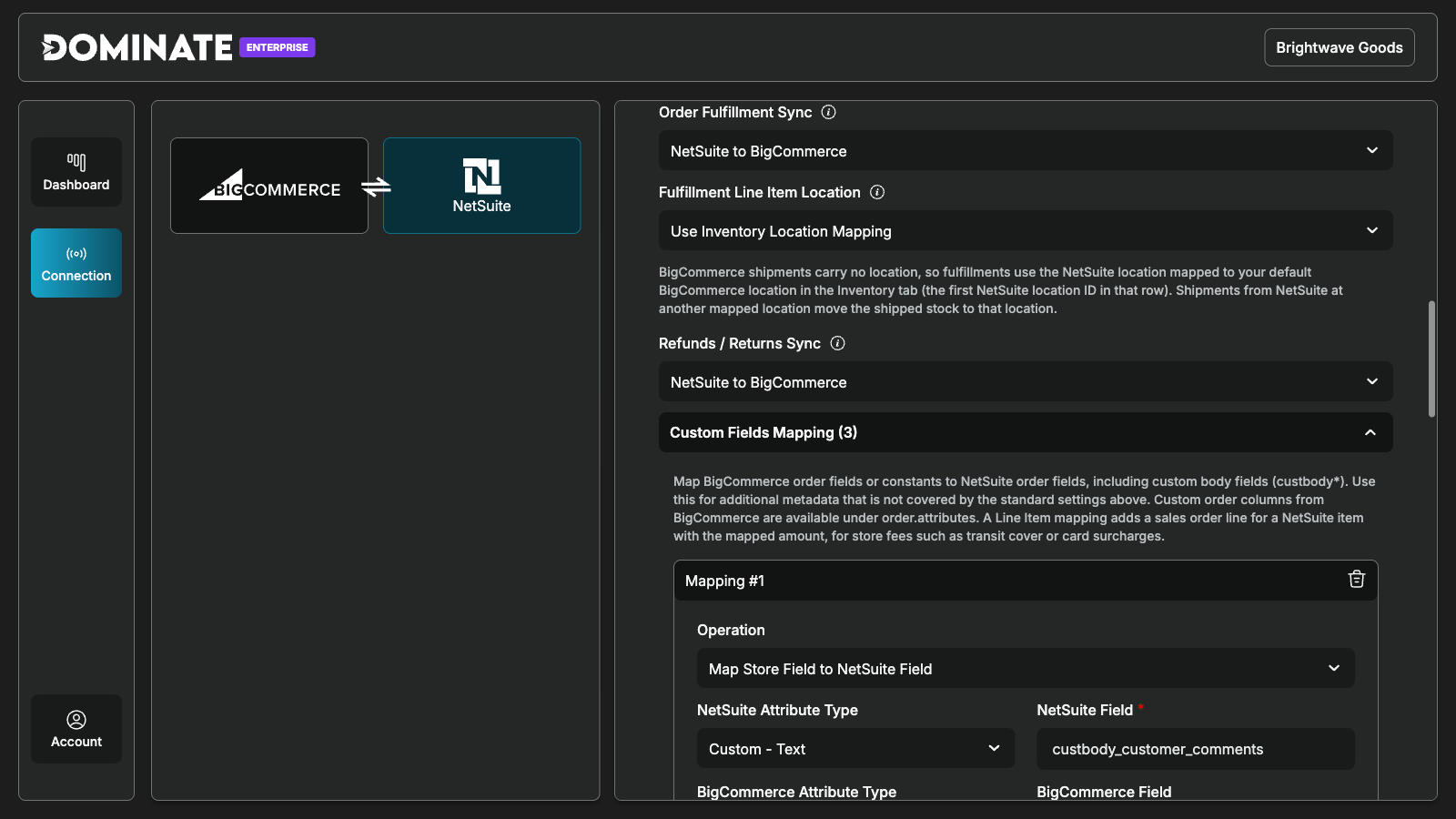
Orders Settings → Order Fulfillment Sync chooses the direction: NetSuite to BigCommerce, BigCommerce to NetSuite, or Disabled. Shipment sync needs the Pro plan or higher.
- NetSuite to BigCommerce: when an item fulfillment is shipped in NetSuite, Dominate creates the shipment on the BigCommerce order with the tracking number and carrier, and BigCommerce moves the order to Shipped. Partial shipments work: each NetSuite fulfillment ships its own lines. An order with several shipping addresses gets one shipment per address. If NetSuite shipped from a location mapped to a different store location (see Inventory), Dominate moves the shipped stock to that location.
- BigCommerce to NetSuite: when you create a shipment in BigCommerce, Dominate creates the item fulfillment in NetSuite with the tracking numbers. The order must already be in NetSuite; if not, the shipment waits and is retried.
Returns and refunds
Orders Settings → Refunds / Returns Sync chooses the direction. Return sync needs the Pro plan or higher.
- NetSuite to BigCommerce: when NetSuite has received the returned items (the return authorization is in Pending Refund or Refunded status), Dominate puts the items back in stock in BigCommerce at your default location and moves the order to Partially Refunded, or Refunded once everything is back. A staff note on the order records the NetSuite return. Dominate never refunds money. Refund your customer in BigCommerce as you normally would. If your BigCommerce store is set to restock items on refund itself, Dominate leaves stock and status to BigCommerce and only adds the note.
- BigCommerce to NetSuite: when you refund products in BigCommerce, Dominate creates a return authorization in NetSuite for those products. A refund of shipping only, or of an amount with no products, is skipped, because NetSuite needs items for a return.
Inventory and prices
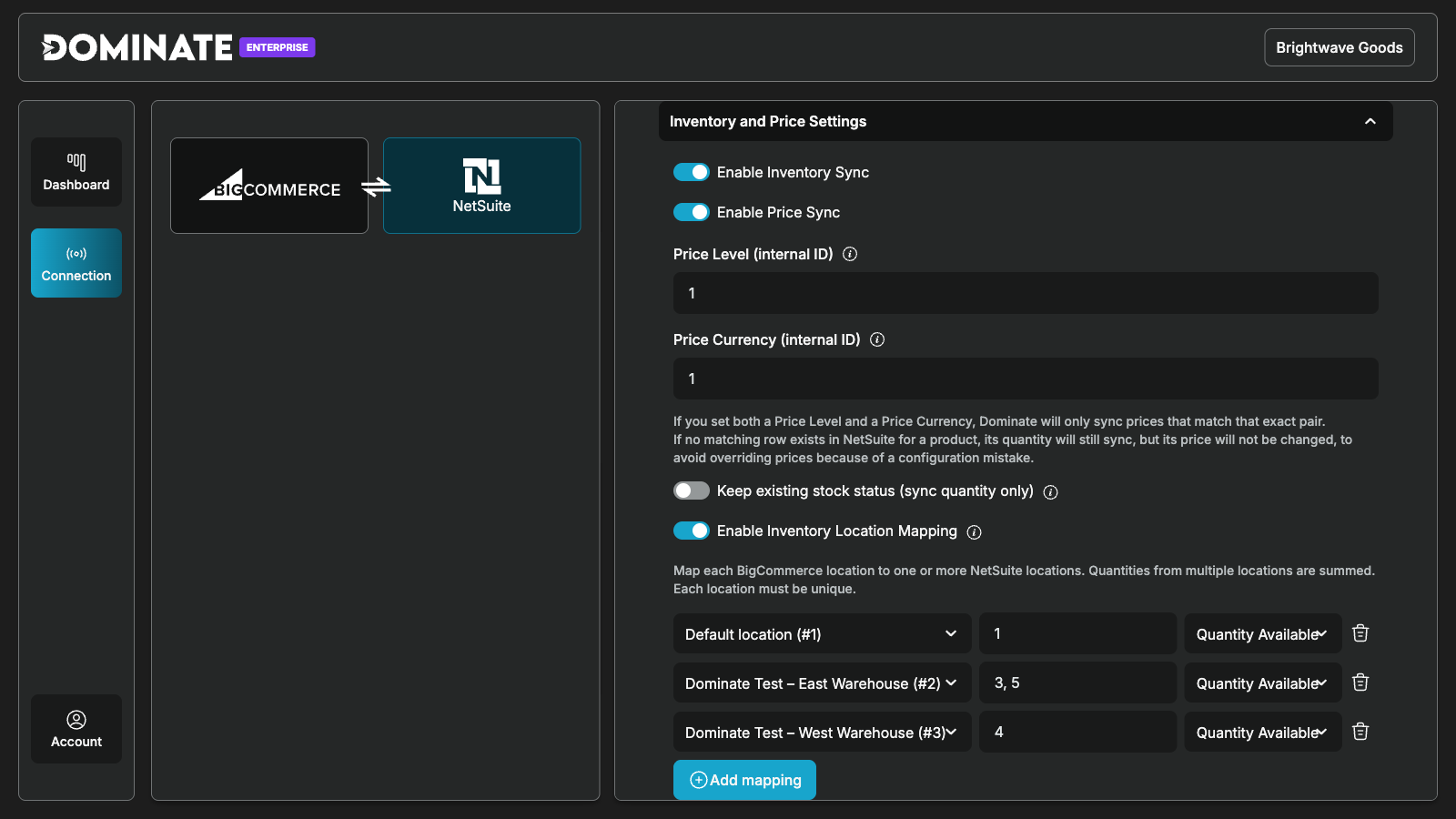
Settings are in Product Settings → Inventory and Price Settings: Enable Inventory Sync, Enable Price Sync, the Price Level and Price Currency internal IDs, and the Inventory Quantity Field.
- Stock and prices come from NetSuite every hour. Click Run Sync Now to start a run straight away. Only products whose stock or price changed in NetSuite since the last successful sync are updated.
- Choose Quantity Available as the quantity field. BigCommerce takes stock off when an order is placed, while NetSuite's quantity on hand drops only when the order ships, so Quantity On Hand would count every open order twice.
- Products must track inventory in BigCommerce (per product, or per variant for products with options). A product whose stock is not tracked is noted in the report and left alone.
- A quantity or price changed by hand in BigCommerce stays until that product's quantity or price changes in NetSuite; the next sync then sends NetSuite's values.
- A SKU that BigCommerce does not have is reported as Product not found and is left out of the hourly runs. It is tried again after a product import finishes, or when you click Run Sync Now.
Location mapping (Pro and Enterprise). Turn on Enable Inventory Location Mapping and add one row per store location: the BigCommerce location, the NetSuite Location IDs (several, comma-separated, are added together) and the quantity field. Each store location then gets the stock of the NetSuite locations mapped to it. When Orders Settings → Fulfillment Line Item Location is set to Use Inventory Location Mapping, the first NetSuite location in the row for your default store location is also the location used for shipments sent to NetSuite.
Product import (Enterprise)
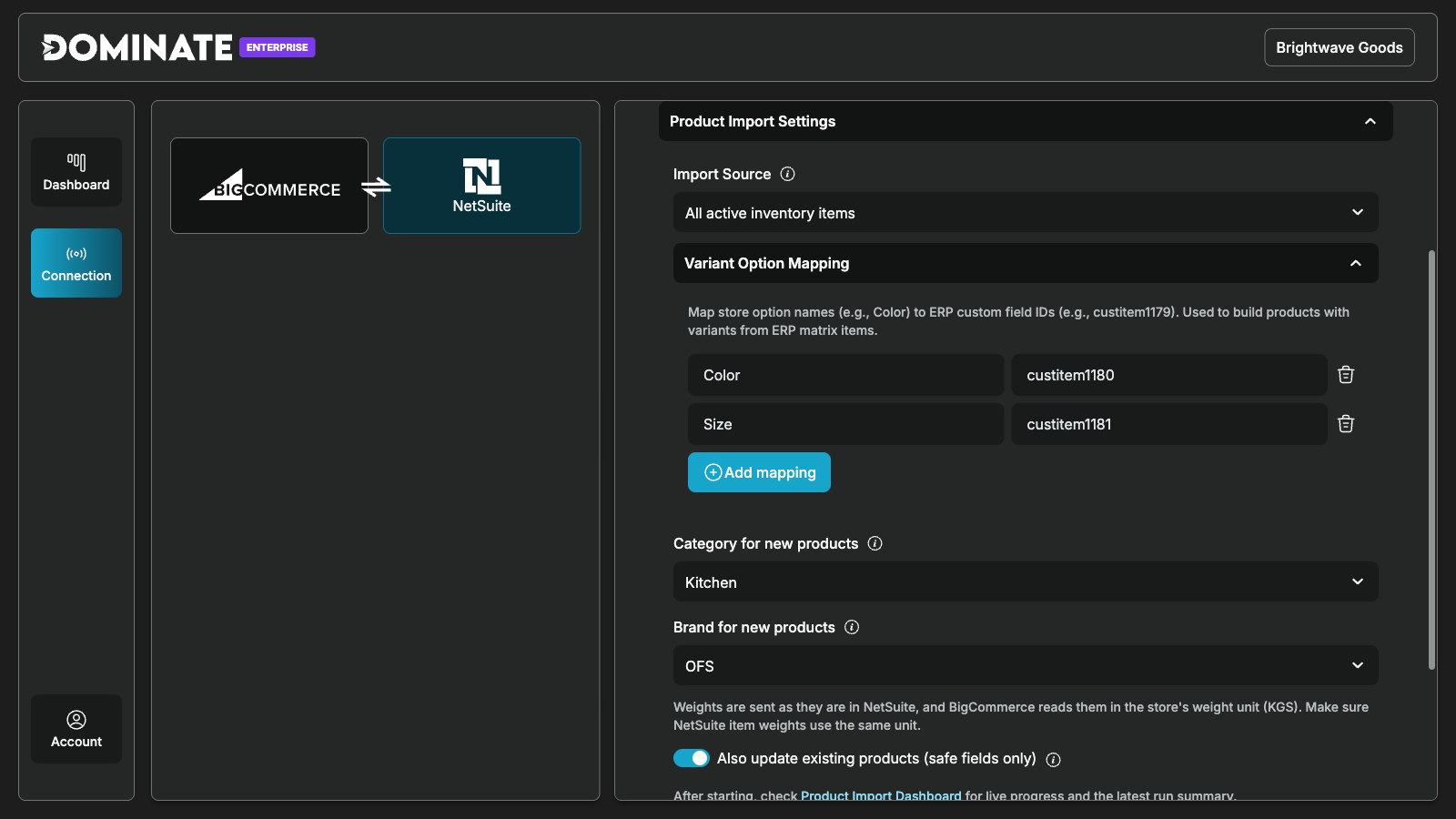
Product Settings → Product Import Settings imports your NetSuite items as BigCommerce products. Choose the Import Source (All active inventory items or a Saved Search with its ID), the Category for new products and the Brand for new products, and map each BigCommerce option name (for example Color) to the NetSuite item field that holds it in Variant Option Mapping. Then click Import Products and follow the run in the Product Import tab of the dashboard.
- Items are grouped by parent SKU. A parent with children becomes one product with options and variants; anything else becomes a simple product.
- New products are created hidden, so you can review them before they go live.
- With Also update existing products (safe fields only) on, existing products matched by SKU get their price, weight and stock updated and missing variants added. Name, categories, brand, images, descriptions and visibility are never changed, and nothing is deleted.
- Weights are sent as they are in NetSuite and read in your store's weight unit, so keep both in the same unit.
- With location mapping on, new products are stocked at every mapped location.
4. Field mapping
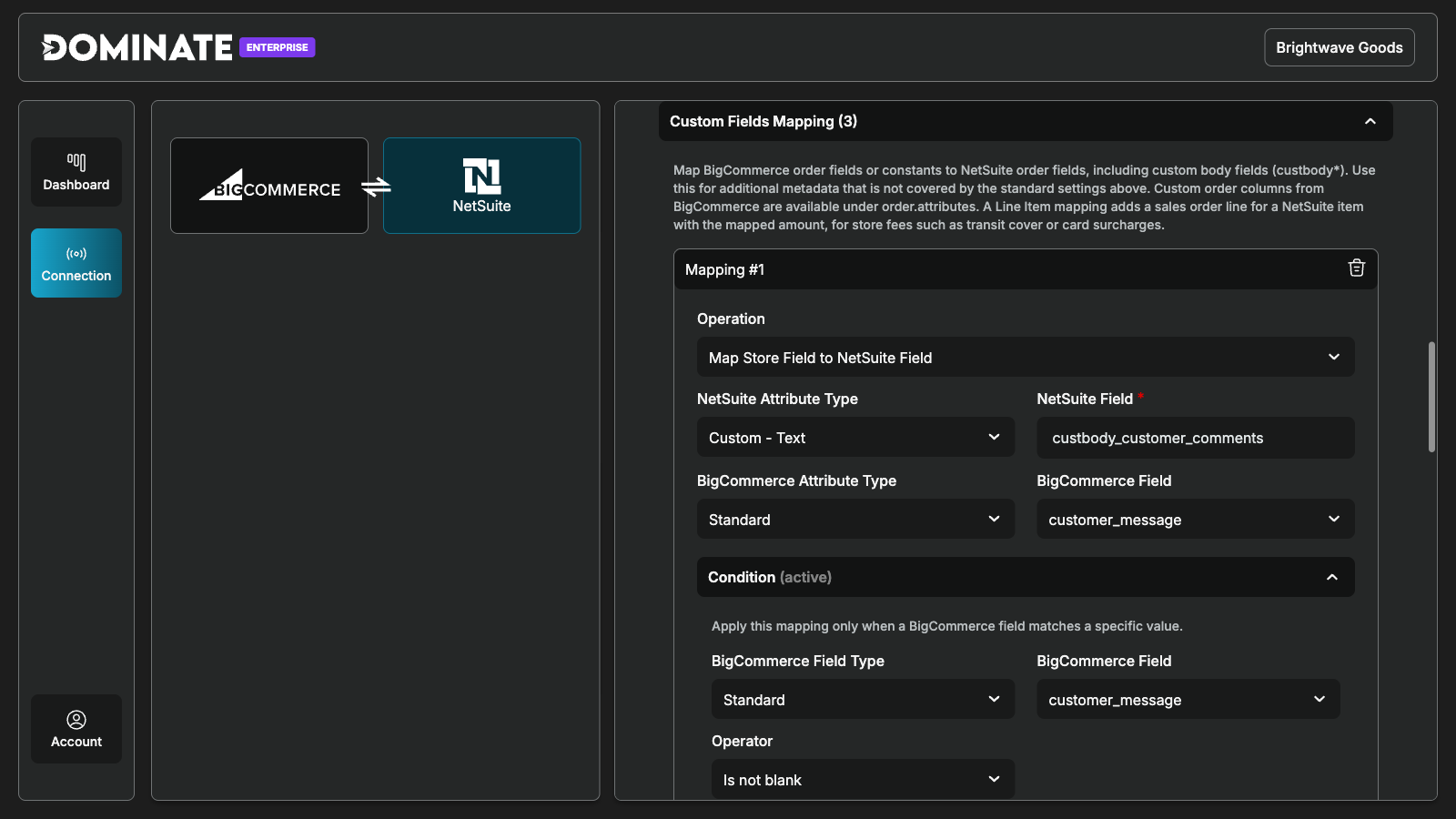
Each module's settings end with Custom Fields Mapping. Click Add mapping to send a store field to a NetSuite field of your choice.
- Map Store Field to NetSuite Field sends a BigCommerce field (order or customer) to a standard or custom NetSuite field. Map NetSuite Field to Fixed Value always sends the same value.
- NetSuite Attribute Type chooses between a standard field, a custom field (text, number, integer, checkbox, date, list or multiselect), and, for orders, a Line Item: the mapped value becomes an extra sales order line, useful for store fees.
- Condition (Pro and Enterprise) sends the mapping only when a store field matches a rule: equals, not equals, contains, not contains, greater than, less than, in list, not in list, is blank, is not blank. Several mappings for the same NetSuite field are allowed; the first whose condition matches wins.
- Value Mapping (Pro and Enterprise) translates a store value into the NetSuite value, for example a customer group ID into a NetSuite customer category.
- The Starter plan allows up to 5 mappings per module, without conditions or value maps.
5. When a sync fails
The dashboard lists every sync with its status. Open View sync details on a row to read the error. Common cases:
| What you see | What to do |
|---|---|
| SKUs not found or inactive in NetSuite: … | Create the item in NetSuite, or fill in the field you use as SKU, then click Retry Sync |
| Connection error | Nothing. Dominate retries on its own, up to 7 times over several hours, and only reports the failure if the last attempt fails |
| NetSuite fault … naming a field | Fix the value in BigCommerce or in your field mapping, or the field setup in NetSuite, then Retry Sync |
| Syncing is paused because this store has no active Dominate subscription | Choose a plan on the app page. Everything held while the store was paused is sent automatically once the plan is active |
| Product not found (inventory) | Create the product with that SKU in BigCommerce, or import it, then Run Sync Now |
| Webhooks · 1 inactive on the Connection page | Click Repair webhooks. BigCommerce switches a webhook off after repeated delivery failures; Dominate also repairs them every night |
Failure emails go to the Notification Email from your NetSuite settings (or to your account email): one email at most per hour, and only for a final failure, not for an attempt that will be retried. You also receive an email at 80% and at 100% of your plan's monthly orders.
6. Plans and billing
BigCommerce bills your plan on your store's invoice every month. The store owner changes the plan from the app page with Change plan; when you upgrade or downgrade, the old subscription is cancelled automatically. Your monthly order limit is 500 on Starter, 2,500 on Pro and unlimited on Enterprise. Orders keep syncing above the limit; you are asked to upgrade.
If your subscription ends, syncing pauses and every sync in the meantime is held, for up to 90 days. Your settings and history are kept. As soon as you choose a plan again, the held syncs are sent.
7. Uninstalling
Uninstalling the app from Apps → My Apps stops all syncing straight away and cancels your subscription. Your settings, mappings and history are kept, so a reinstall reactivates the same account. You choose a plan again; the free trial is offered once per store.
8. Getting help
Email support@dominate.co, visit dominate.co/contact, or use the Need help? Contact support link at the bottom of the app page.
Next
Installation Guide
Install the Dominate NetSuite Connector from the BigCommerce App Marketplace, choose a plan, connect NetSuite and open your dashboard. Takes a couple of minutes.