Dominate NetSuite Connector keeps your BigCommerce store and your NetSuite account in step. Orders and customers go to NetSuite. Shipments, returns, inventory and prices come back to BigCommerce. Installing takes a couple of minutes. Our team then connects your NetSuite account and sets up the sync with you.
Before you start
- You need to be the store owner in BigCommerce. Only the store owner can install the app, choose a plan and open the Dominate dashboard from BigCommerce.
- You need a NetSuite account with a token-based integration record. Our team connects it for you after the install, so have your NetSuite administrator's contact ready. If you want to enter the details yourself, you will need the NetSuite Account ID, Client ID, Client Secret, Token ID and Token Secret.
- Every product you want to sync needs a SKU in BigCommerce that matches the item in NetSuite (the Item Name by default; you can choose another NetSuite field during setup).
1. Install the app
- 1In your BigCommerce control panel, go to Apps → Marketplace and search for Dominate NetSuite Connector.
- 2Click Install, review the permissions, and confirm.
BigCommerce asks for these permissions. Dominate uses each one only for what is listed:
| Permission | Why Dominate needs it |
|---|---|
| Information & Settings (read-only) | Your store's name, weight unit and inventory settings |
| Orders (modify) | Read orders, add shipments with tracking numbers, update the order status and notes for returns |
| Products (modify) | Look up products by SKU, update prices, import your NetSuite catalog as products |
| Customers (read-only) | Send customers to NetSuite |
| Store Inventory (modify) | Set stock levels from NetSuite |
| Store Locations (read-only) | Match your NetSuite locations to your store's locations |
Dominate never charges or refunds your customers. Payments stay in BigCommerce.
When the install finishes, the Dominate NetSuite Connector page opens inside your control panel. Your Dominate account is created automatically under your store owner's email address. The page says Almost there: your store is connected, and our team connects NetSuite next.
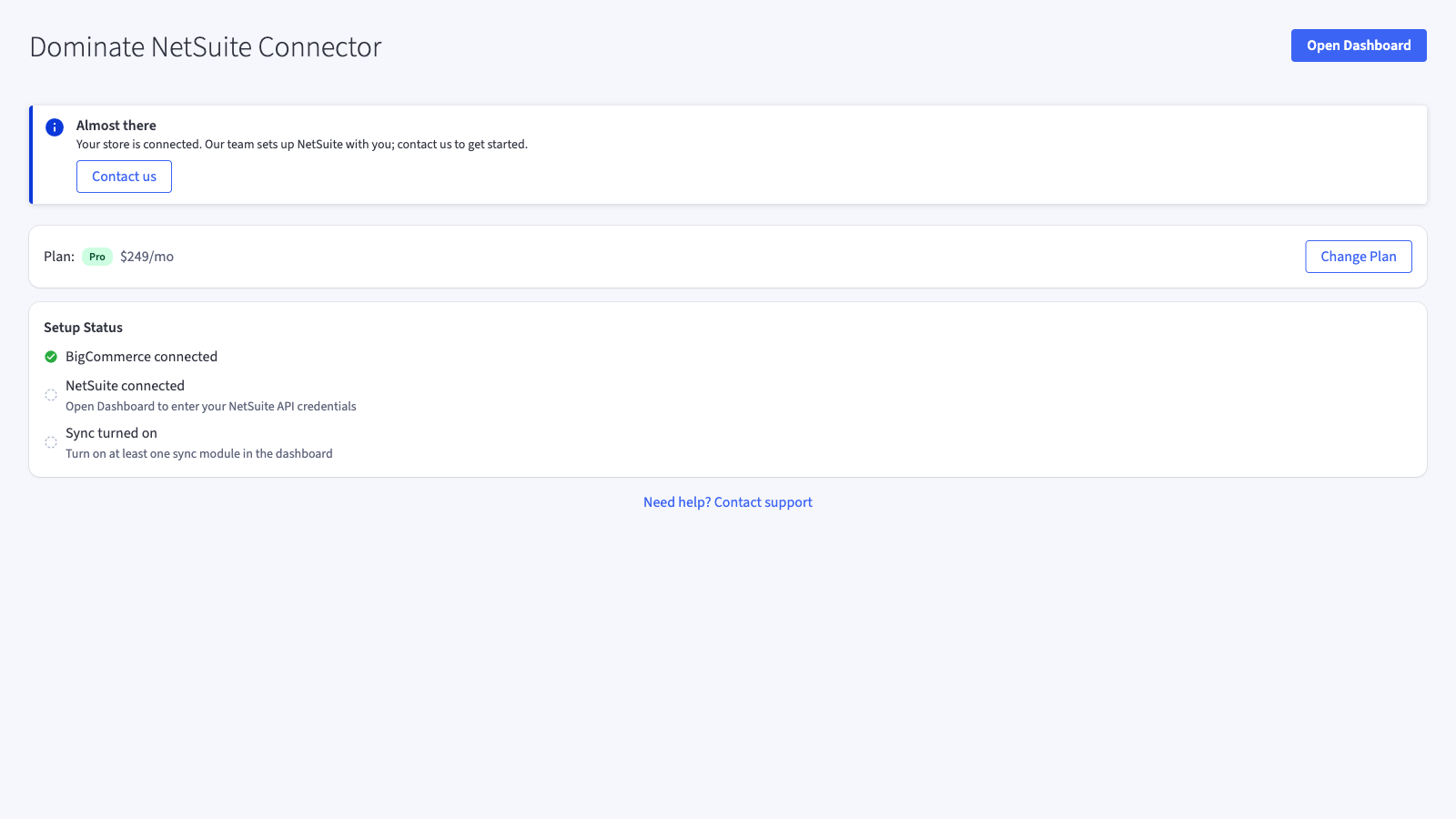
If your store owner's email already has a Dominate account, the page says An account already exists and the store is not connected automatically. This protects your existing account. Click Contact us and we will connect the store to your account.
2. Choose a plan
Right after the install, the app page shows Choose a plan to get started. Syncing stays paused until a plan is chosen.
- 1Pick Starter, Pro or Enterprise and click Select.
- 2BigCommerce opens its checkout page. Approve the subscription there.
- 3BigCommerce returns you to the app page, which now shows your plan.
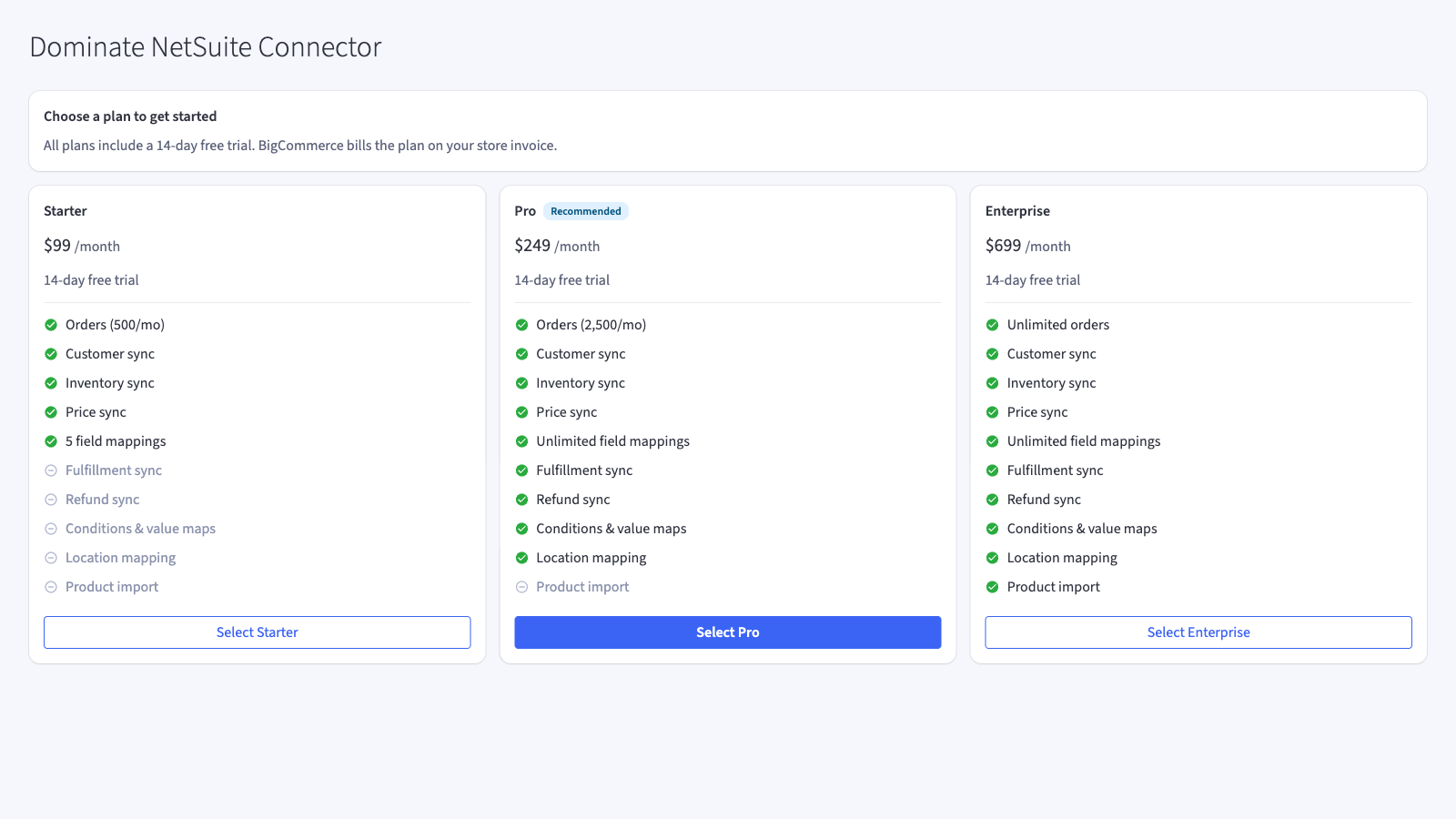
Your first plan starts with a 14-day free trial. The trial is offered once per store. BigCommerce bills the plan on your store's invoice, in USD, every month.
| Plan | Price | Includes |
|---|---|---|
| Starter | $99 / month | Orders (500 a month), customer sync, inventory sync, price sync, 5 field mappings |
| Pro | $249 / month | Everything in Starter, plus shipment sync, return sync, field mapping conditions and value maps, location mapping, unlimited field mappings. 2,500 orders a month |
| Enterprise | $699 / month | Everything in Pro, plus product import and unlimited orders |
The store owner can change the plan at any time with Change plan on the app page.
3. Connect NetSuite
The Setup Status card on the app page shows three steps:
- BigCommerce connected: done as soon as you install.
- NetSuite connected: done once your NetSuite credentials are saved.
- Sync turned on: done once at least one sync module is switched on in the dashboard.
There are two ways to connect NetSuite:
Our team does it with you (recommended). Click Contact us on the app page, use the Need help? Contact support link at the bottom of the page, or email support@dominate.co. We connect your NetSuite account and set up the sync with you: which orders to send, how fields map, and which locations to use.
Enter the credentials yourself. Click Open Dashboard, open the NetSuite card and then Connection & Core Mapping. Fill in Account ID, Client ID, Client Secret, Token ID, Token Secret, choose the SKU Mapping Field (Item Name/Number by default) and a Notification Email for sync failure alerts. Click Save Settings, then Test Connection. After that, turn on the modules you need in Orders Settings, Product Settings and Customers Settings.
4. Open your dashboard
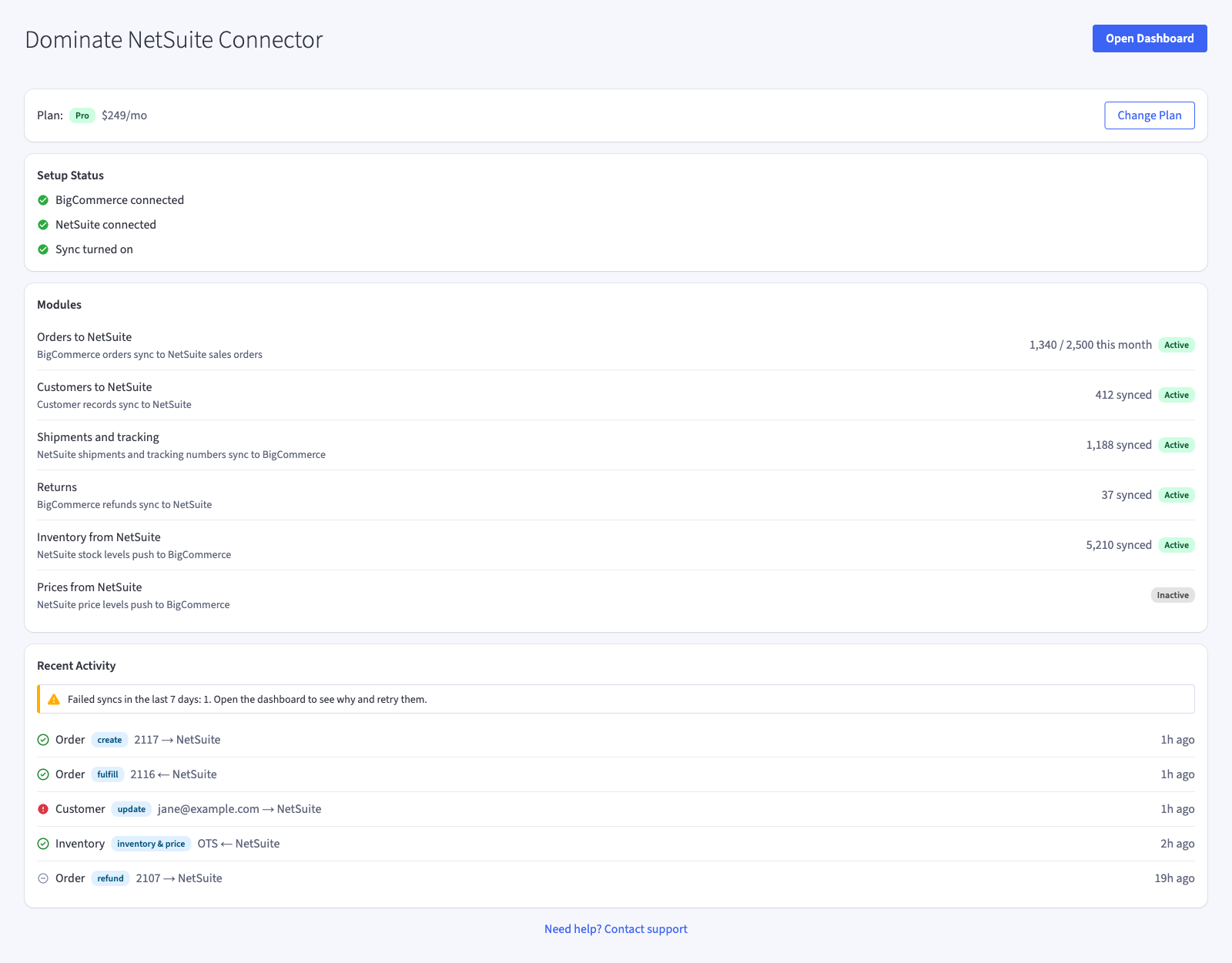
On the app page, click Open Dashboard. Your Dominate dashboard opens in a new tab, already signed in. The dashboard shows every sync with its status and error, lets you retry a failed sync, and holds all settings and field mappings.
- Only the store owner sees the Open Dashboard button. Staff users who open the app see a note instead.
- The link works once and expires after 15 minutes. Open the app page again to get a new one.
You can also sign in directly at dominate.co/account. Your account was created during the install, so the first time, click Forgot password? there, enter your store owner's email and set your password.
Uninstalling
Go to Apps → My Apps, find Dominate NetSuite Connector and uninstall it.
- Syncing stops straight away, and your Dominate subscription in BigCommerce is cancelled.
- Your settings, field mappings and sync history are kept.
- If you reinstall later, the same account is reactivated. You choose a plan again; the free trial is not offered a second time.
Need help?
Email support@dominate.co or visit dominate.co/contact. Once the app is installed, the User Guide explains what syncs, when, and where every setting lives.
Next
User Guide
What the Dominate NetSuite Connector syncs between BigCommerce and NetSuite, when it runs, where each setting lives, and what to do when a sync fails.